Two-Factor Sign-In
The Two-Factor Sign-In page adds a second step to your sign-in, so a stolen password alone is not enough. After your password, you either type a code from an authenticator app on your phone or use a passkey (your device's fingerprint, face or PIN check). Each admin sets up their own.
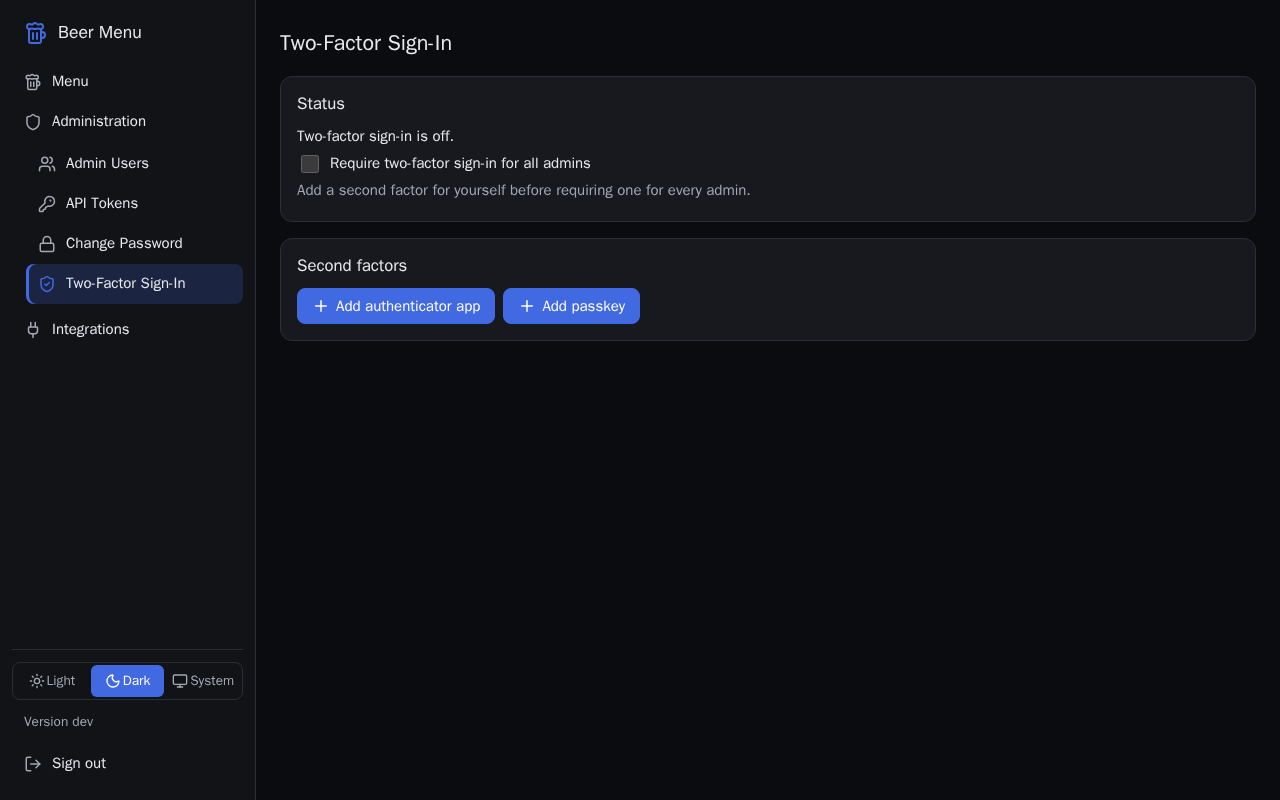
The page has a Status card, a Second factors card that lists yours, and, once two-factor sign-in is on, a Recovery codes card. Most changes here may first open the Confirm it is you dialog if you have not signed in or confirmed in the last few minutes: type your Password, then your Authenticator code if you have one (or select Use a passkey or Use a recovery code), and select Confirm.
Add an authenticator app
You need an authenticator app on your phone. If the page says authenticator apps are not available, ask whoever runs your Beer Menu server to turn them on.
- In Second factors, select Add authenticator app.
- In the Add authenticator app dialog, scan the QR code with your authenticator app, or type the Key shown under it into the app.
- Type the 6-digit code the app now shows in Authenticator code.
- Select Verify.
- If this is your first second factor, save your recovery codes, as described below.
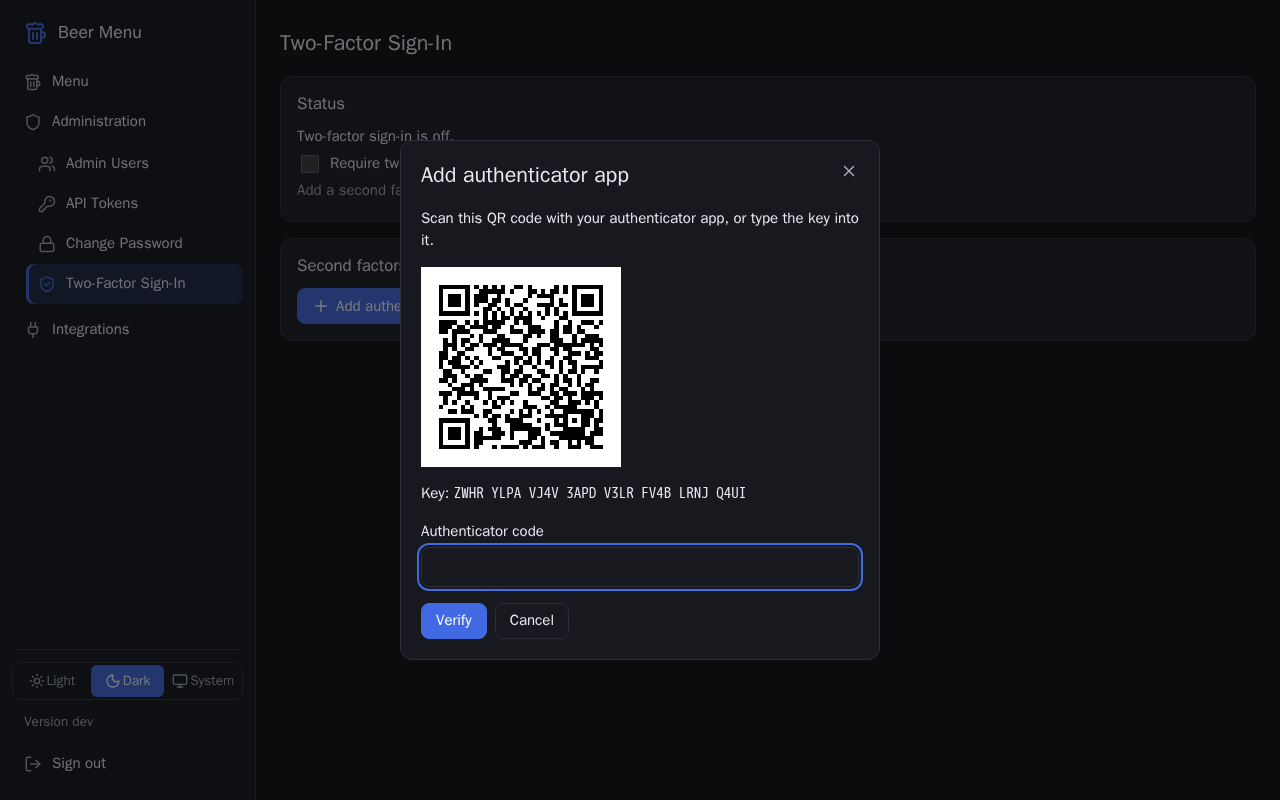
The QR code and key are secret. Do not share them or take a photo of them: anyone with them can make your codes.
Add a passkey
Passkeys work only when you open the admin app at the web address the server was set up with. If the page says passkeys are not available, it tells you why, or which address to use.
- In Second factors, select Add passkey.
- Type a Passkey name that tells you which device it is, such as "Work laptop".
- Select Add, then approve the prompt on your device.
- If this is your first second factor, save your recovery codes, as described below.
Save your recovery codes
When you add your first second factor, the app shows 10 recovery codes. Each one signs you in once if you lose your phone or passkeys.
Recovery codes are shown only once. Save them somewhere safe before you select Done, away from your phone and computer. Without them, if you lose your second factors, only another admin can let you back in.
- Select Copy or Download, or write the codes down.
- Tick I saved these codes.
- Select Done.
Make new recovery codes
The Recovery codes card shows how many you have left, and warns you when only 2 or fewer remain.
New codes replace all your old ones, which stop working at once. The new codes are shown only once.
- In Recovery codes, select New recovery codes.
- Save the new codes as described above, tick I saved these codes and select Done.
Require two-factor sign-in for every admin
You can do this only after adding a second factor for yourself.
- In Status, tick Require two-factor sign-in for all admins.
- From then on, an admin without a second factor must add one the next time they sign in.
Rename or remove a second factor
Removing a second factor cannot be undone, and signs you out on your other devices. While two-factor sign-in is required for all admins, you must keep at least one.
- In Second factors, find the authenticator app or passkey.
- To rename a passkey, select Rename, change the Passkey name and select Save.
- To remove one, select Remove, then Remove in the Remove second factor dialog.
Turn off two-factor sign-in
Turning it off removes all your second factors and recovery codes. It cannot be undone: you must set everything up again to turn it back on.
- In Status, select Turn off 2FA.
- In the Turn off 2FA dialog, select Turn off.