Display Settings
The Display Settings page changes how the TV display looks: its title, colors, fonts, layout and which beer details it shows. It also sets the volume units the admin app uses. A preview beside the form shows the TV with your changes before you save them.
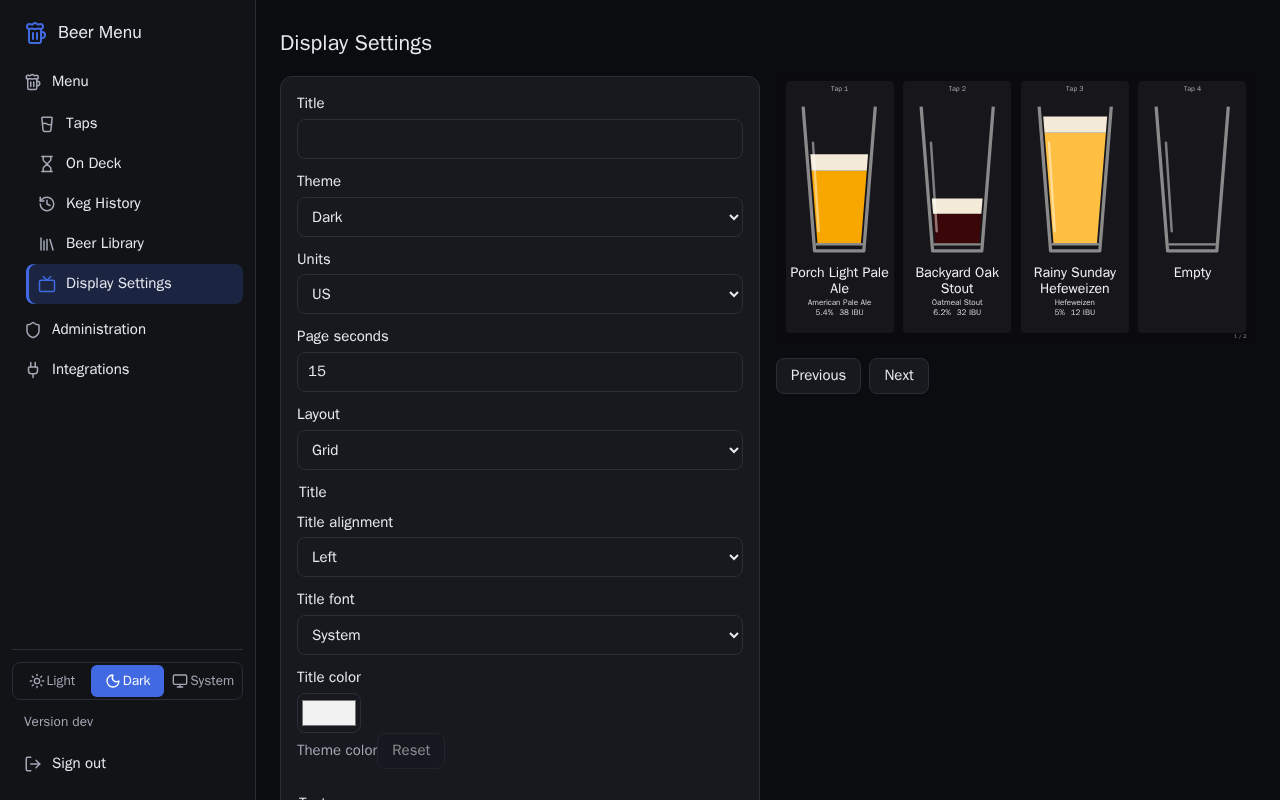
What each setting does
- Title: the heading at the top of the TV, up to 60 characters. Leave it empty for no title.
- Theme: Dark or Light colors on the TV. This does not change the admin app's own look, which you choose at the bottom of its side panel.
- Units: US (gallons, with pours in fluid ounces) or Metric (litres, with pours in millilitres). This changes the admin app only; the TV shows no volumes.
- Page seconds: when the TV has more than one page, how long each page shows before the next, from 5 to 300 seconds.
- Layout: Grid (cards, up to 8 a page), Vertical list, or Side by side (taps and on deck next to each other).
- Title alignment, Title font and Title color: where the title sits (Left, Center or Right) and how it looks.
- Text font and Text color: how the beer names and details look.
- Tap details: tick the details each tap card shows: Style, ABV, IBU, SRM and Description.
Change the display
- Change any of the settings. The TV preview shows the result straight away, but nothing changes on the TV yet.
- If the preview has more than one page, use Previous and Next to look at each one.
- Select Save. The TV picks up the change within about 10 seconds, with no need to touch it.
Go back to the theme's color
While a color setting uses the theme's color, it says "Theme color" under it.
- Next to Title color or Text color, select Reset.
- Select Save.