Beer Library
The Beer Library page holds every beer you make or buy. Add a beer here before you put a keg of it on a tap.
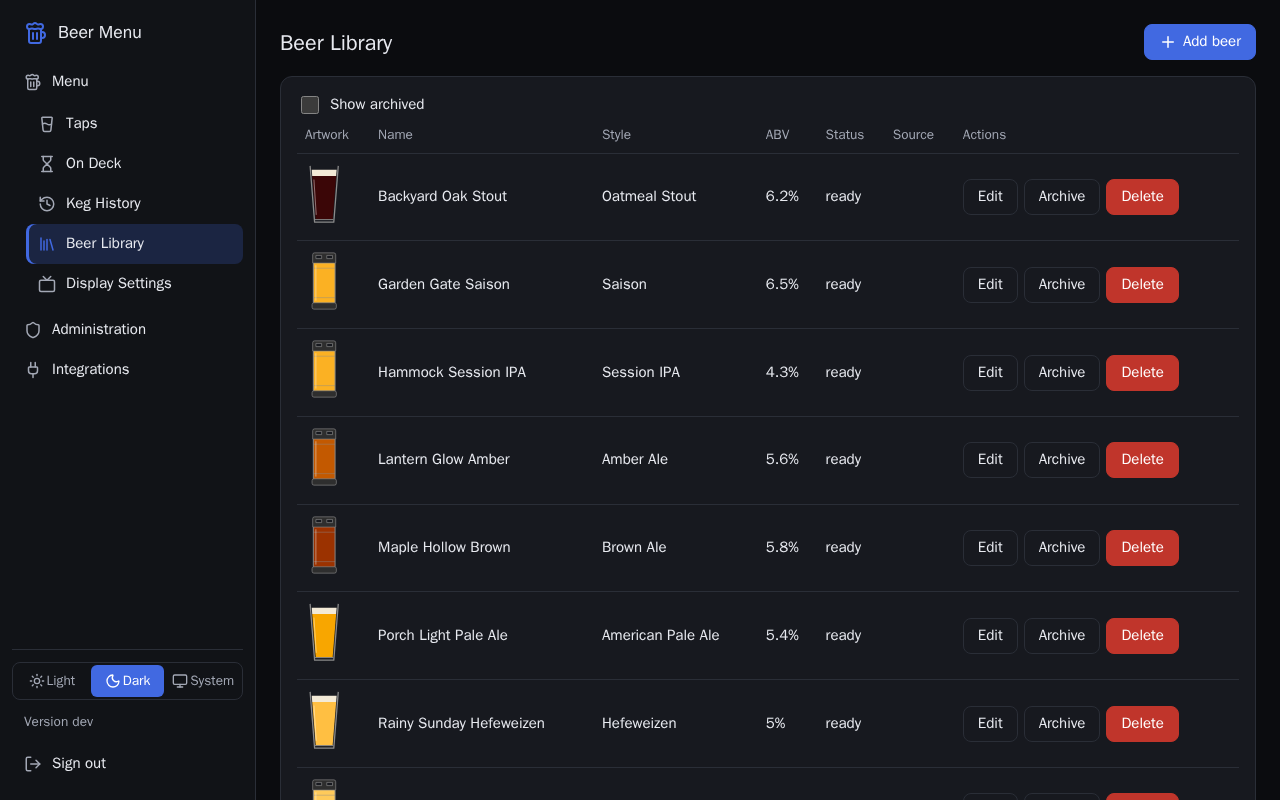
Add a beer
- Select Add beer at the top of the page.
- Fill in the form. Only Name is required:
- Name: the beer's name, as the TV shows it.
- Style: for example "American Pale Ale".
- ABV: alcohol by volume, in percent, from 0 to 25.
- IBU: bitterness, from 0 to 200.
- SRM: color, from 0 (very pale) to 100 (black). The picture at the top of the form shows the color as you type.
- Description: a few words about the beer, which the TV can show.
- Brewer and Brew date: who made it and when.
- Status: planned, fermenting, conditioning or ready. A beer that is fermenting or conditioning, with no keg, shows on the On Deck page and the TV as coming soon.
- Select Save. If a field is not right, a message under it says why.
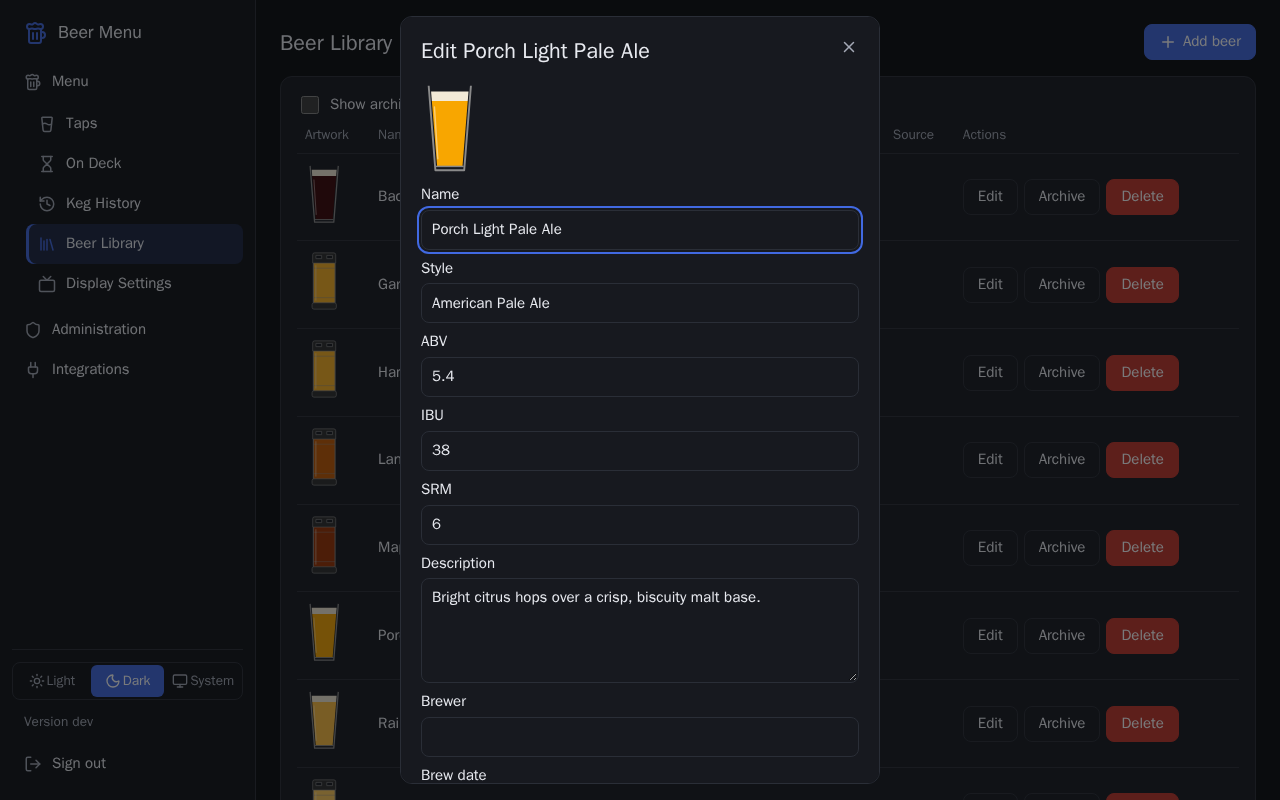
Edit a beer
- In the beer's row, select Edit.
- Change any field.
- Select Save, or Cancel to leave it as it was.
Archive a beer you no longer make
An archived beer is hidden from the list and from the beer choices when you add a keg, but it is kept, along with its kegs in Keg History. A beer with a keg on a tap or waiting cannot be archived until that keg is kicked.
- In the beer's row, select Archive.
Restore an archived beer
- Tick Show archived above the list.
- In the beer's row, select Restore.
- Untick Show archived to see your current beers again.
Delete a beer
Deleting a beer is permanent and cannot be undone. A beer that has ever had a keg, even one in Keg History, cannot be deleted: archive it instead.
- In the beer's row, select Delete.
- In the Delete beer dialog, select Delete.
Beers from Brewfather
Beers imported from Brewfather show "Brewfather" in the Source column and have a Re-sync button, which copies the latest details from Brewfather. You connect Brewfather and import beers on the Brewfather page.