Taps
The Taps page shows every tap in your bar and the keg on it. It is the page you use most: here you put kegs on taps, record pours, and take off or kick kegs. You can also add, rename, reorder, turn off and remove taps.
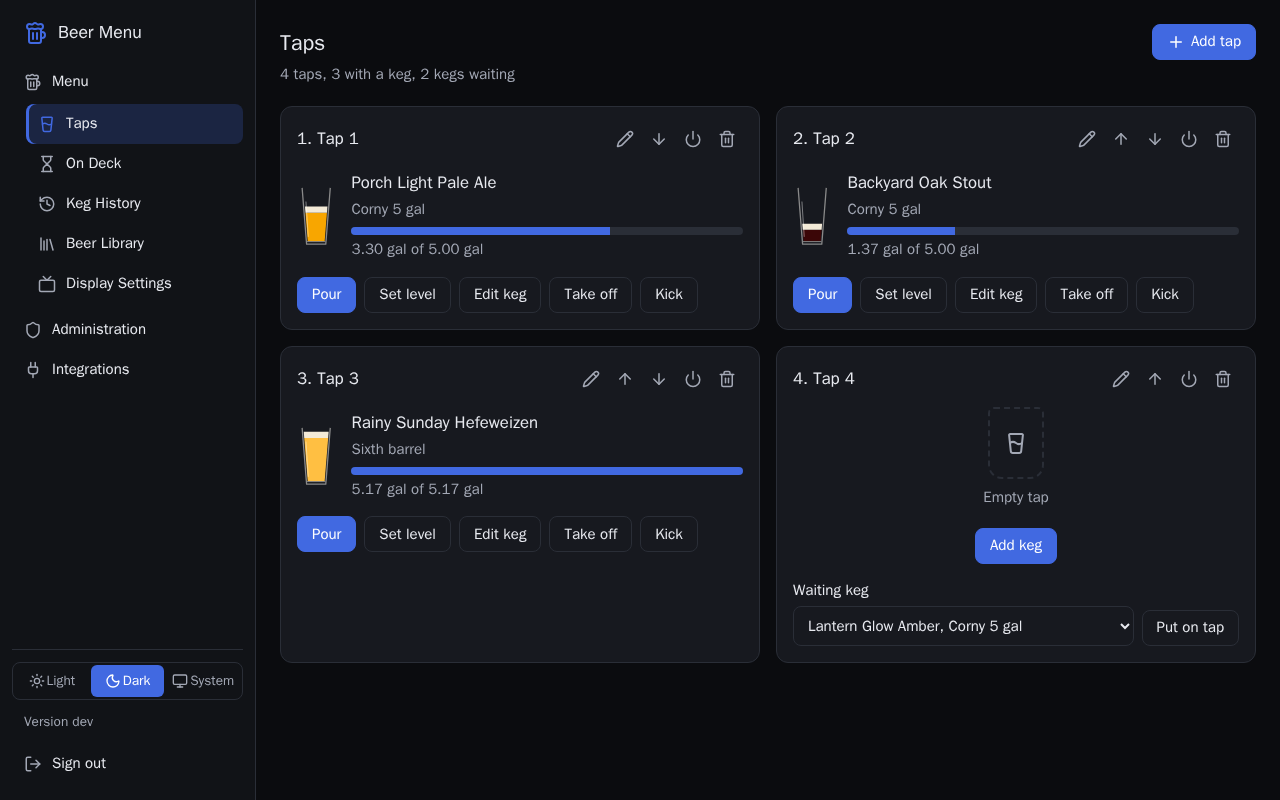
What a tap card shows
Each tap has a card headed with its number and label, such as "1. Tap 1". A tap with a keg shows the beer's name, the keg type, a bar showing how full the keg is, and how much is left out of the keg's size. An empty tap shows "Empty tap".
The small buttons in the top corner of each card are, from left to right: Rename, Move up, Move down, Disable (or Enable) and Remove. Hold the pointer over a button to see its name.
The line under the "Taps" heading counts your taps, how many have a keg, and how many kegs are waiting on the On Deck page.
Put a new keg on an empty tap
The beer must already be in the Beer Library.
- On the card that shows "Empty tap", select Add keg.
- In the Add keg dialog, start typing the beer's name in Beer, then pick it from the list.
- Choose the keg's Type. Size and Remaining fill in with that type's size.
- If the keg is not full, change Remaining to how much is in it.
- Select Save. The keg appears on the tap and on the TV.
Put a waiting keg on an empty tap
Kegs waiting on the On Deck page can go straight onto an empty tap.
- On the card that shows "Empty tap", choose the keg from the Waiting keg list.
- Select Put on tap.
Record a pour
- On the tap's card, select Pour.
- The amount starts at 16 fl oz (or 500 mL if Display Settings uses metric units). Change it if you poured a different amount.
- Select Save pour. The level bar and the amount left go down.
Set how much is left
Use this when you know the real amount, for example after weighing the keg.
- On the tap's card, select Set level.
- Type the amount in Remaining.
- Select Save level.
Correct a keg's details
- On the tap's card, select Edit keg.
- Change the Beer, Type, Size or Remaining.
- Select Save, or Cancel to leave it as it was.
Take a keg off a tap
Taking a keg off does not kick it: the keg moves to the On Deck page as a waiting keg, with its level kept, and the tap becomes empty.
- On the tap's card, select Take off.
Kick an empty keg
- On the tap's card, select Kick.
- In the Kick keg dialog, select Kick. The keg moves to Keg History and the tap becomes empty.
Kicking a keg cannot be undone. A kicked keg cannot go back on a tap.
Add a tap
- Select Add tap at the top of the page.
- Type a Label, such as "Left tap", or leave it empty to name the tap by its number.
- Select Save. The new tap is added at the end.
Rename a tap
- On the tap's card, select the Rename button (the pencil).
- Change the Label.
- Select Save.
Change the order of the taps
- On a tap's card, select Move up or Move down (the arrows). The TV shows the taps in the same order.
Turn a tap off or on
A disabled tap is hidden from the TV but keeps its keg. Its card shows "(disabled)" after its label.
- On the tap's card, select Disable (the power button).
- To show the tap again, select Enable.
Remove a tap
Removing a tap cannot be undone. Only a tap with no keg can be removed: take off or kick its keg first. You cannot remove your last tap.
- On the tap's card, select Remove (the bin).
- In the Remove tap dialog, select Remove.