API Tokens
The API Tokens page makes tokens: long secret keys that let another program use Beer Menu without signing in, for example Home Assistant showing what is on tap, or a script on a keg scale updating how much is left. You only need a token if you set up something like that.
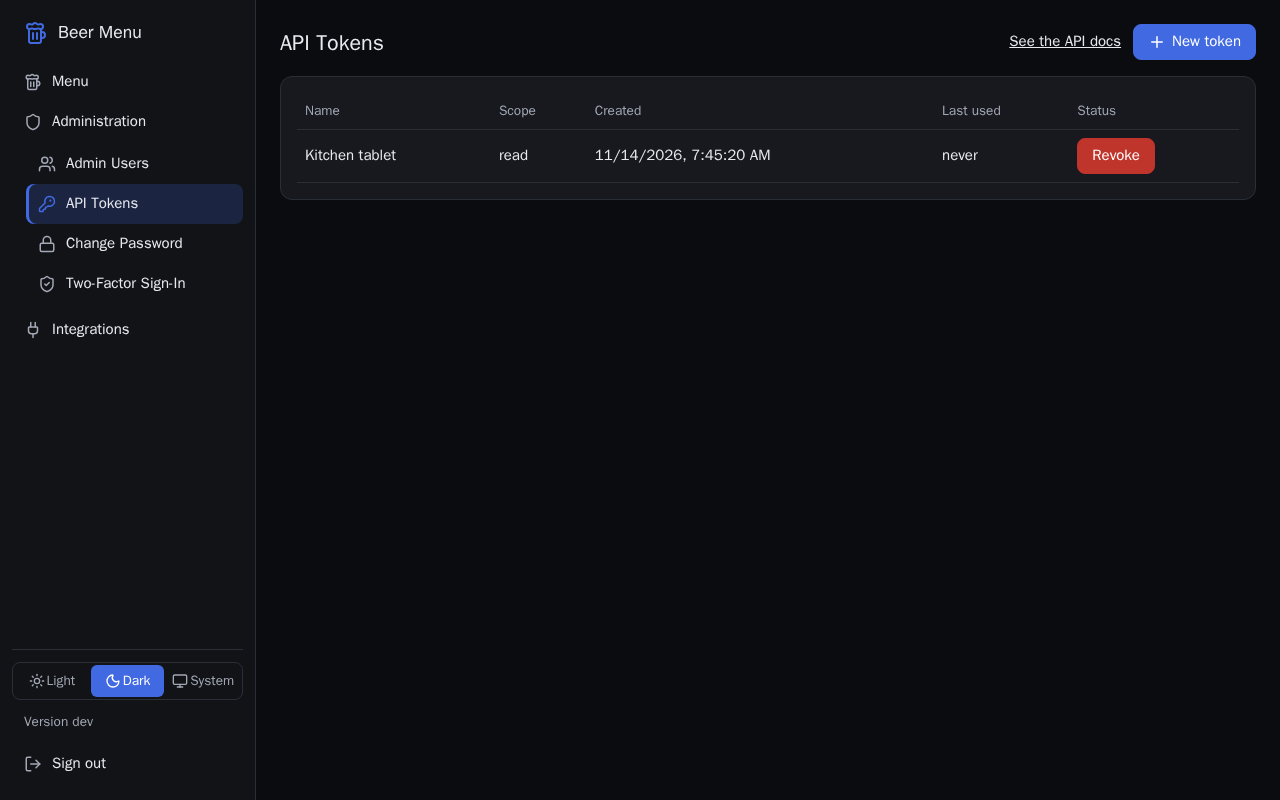
Each row shows the token's Name, its Scope, when it was Created and Last used, and its Status. A token's scope is one of:
- read: the program can only look at your beers, taps and kegs.
- write: the program can also change them, for example record pours.
Give each program its own token with the smallest scope it needs, so you can revoke one without affecting the others.
Create a token
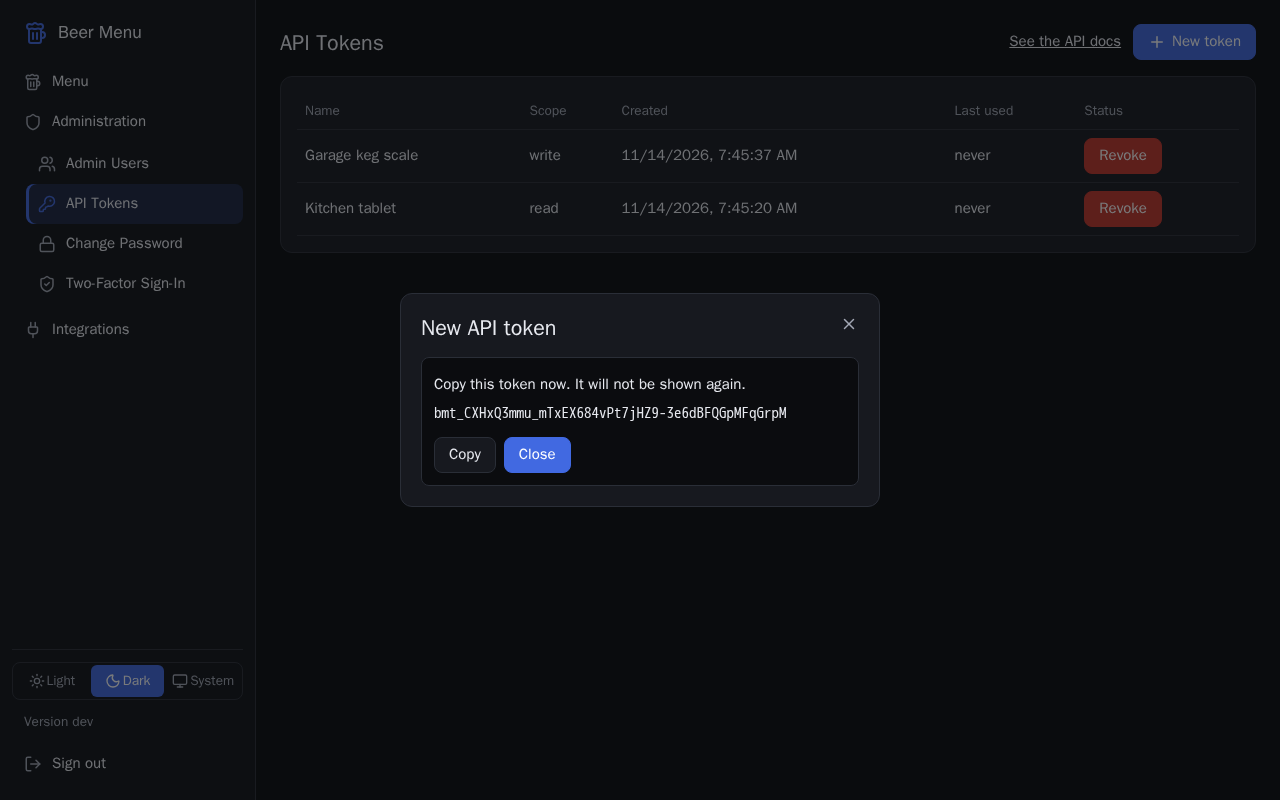
The token is shown only once, when you create it. Copy it before you close the dialog: it cannot be shown again. If you lose it, revoke it and create a new one. Anyone who has the token can use it, so keep it as private as a password.
- Select New token at the top of the page.
- In the New API token dialog, type a Name that says what will use it, such as "Kitchen tablet".
- Choose the Scope: read or write.
- Select Create token. If the Confirm it is you dialog opens, type your Password (and your second factor, if you use one) and select Confirm.
- The dialog shows the token. Select Copy, or select the token and copy it by hand, and paste it into the program that will use it.
- Select Close.
Revoke a token
Revoking a token cannot be undone. Any program using it stops working at once.
- In the token's row, select Revoke.
- In the Revoke token dialog, select Revoke. The token's status changes to "Revoked".
Programmers can find how to use a token under See the API docs, at the top of the page.