Brewfather
The Brewfather page connects Beer Menu to your Brewfather account, so you can bring your brewing batches into the Beer Library as beers instead of typing them in. Beer Menu only reads from Brewfather; it never changes anything there.
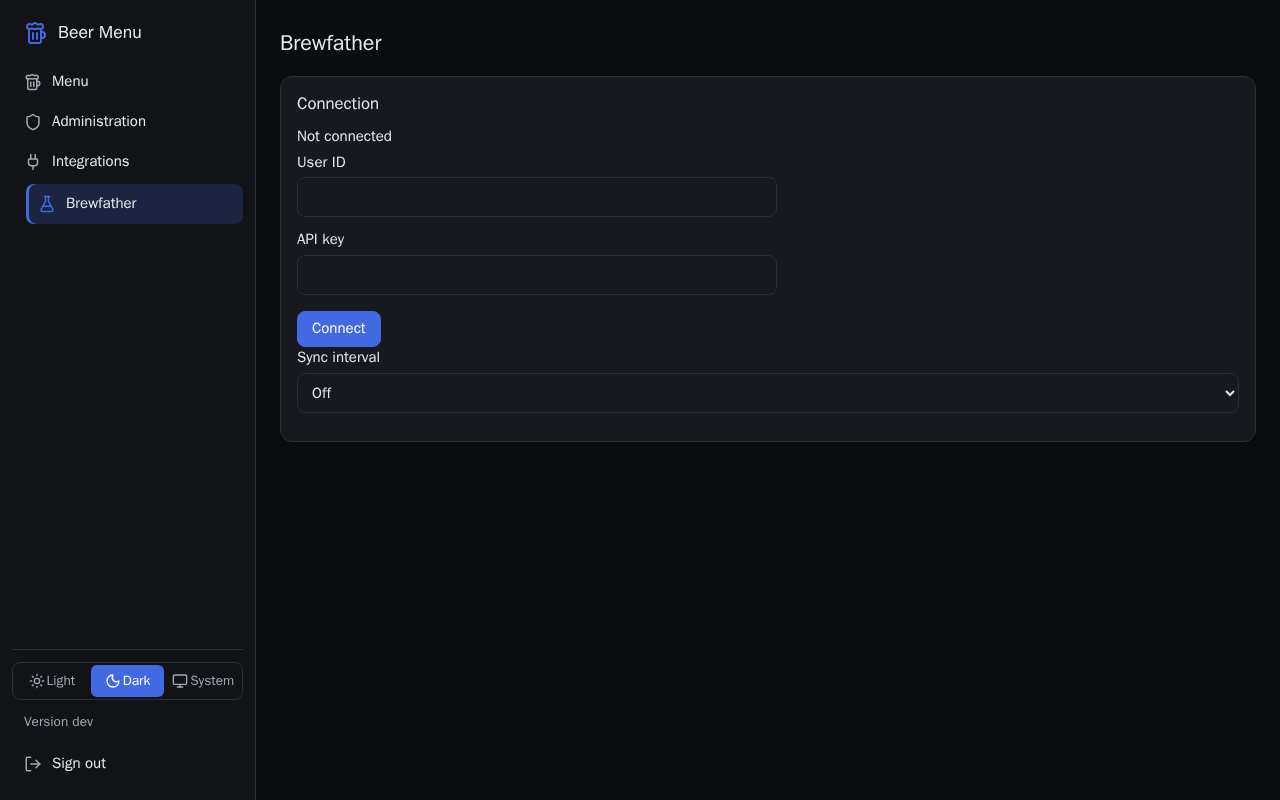
If the page says Brewfather import is not set up on this server, ask whoever runs your Beer Menu server to turn it on.
Connect your Brewfather account
- In Brewfather, open your settings and create an API key that can read batches. Brewfather shows your user ID and the new key.
- In Beer Menu, type the User ID and the API key.
- Select Connect. The page says "Connected" and lists your batches under Batches.
Beer Menu stores the API key safely and never shows it again. If the page later says "Reconnect needed", type the user ID and API key again and select Connect.
Import batches as beers
- In Batches, select Refresh to get the latest list from Brewfather.
- Tick the box in the Import column for each batch you want. Batches already imported say "Imported as" and the beer's name instead.
- Select Import selected. A line under the list says what happened to each batch.
Imported beers show "Brewfather" in the Beer Library, and their status follows the batch: a fermenting or conditioning batch shows as coming soon on the On Deck page and the TV.
Keep imported beers up to date
- To update every imported beer now, select Sync now. A sync also imports any new batch that is brewing, fermenting or conditioning. The result shows under it when it finishes.
- To update them on a schedule, choose a Sync interval, such as Every hour. Choose Off to stop.
- To update one beer, select Re-sync in its row on the Beer Library page.
Disconnect Brewfather
Imported beers stay in your Beer Library, and scheduled syncs stop.
- In Connection, select Disconnect.
- In the Disconnect Brewfather dialog, select Disconnect.