Getting started
This page covers your first visit to the admin app: creating the first admin account, signing in, and opening the TV display. If Beer Menu is not running yet, see Install with Docker first.
Create the first admin
A new Beer Menu has no accounts and no default password. The first time you open the admin app, it asks you to create the first admin. You only see this once.
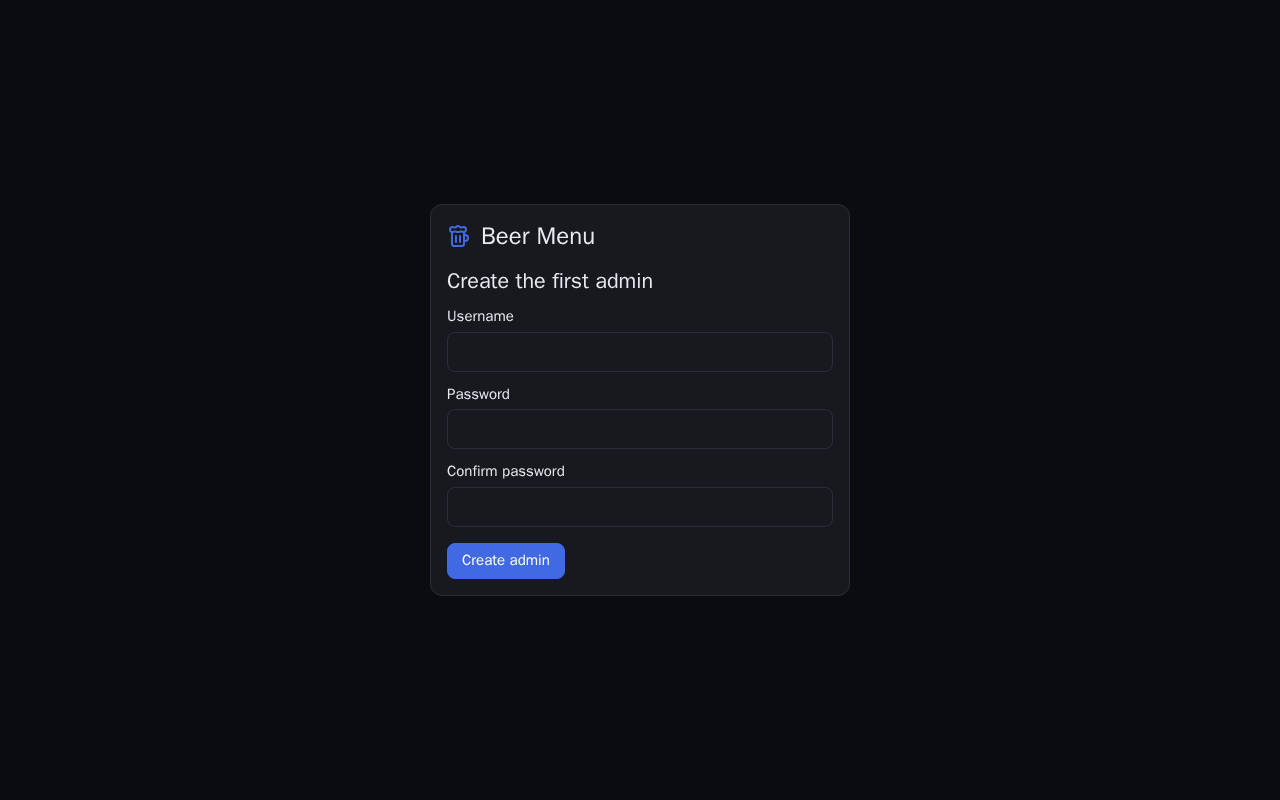
- Open the admin app in your browser.
- Type a Username.
- Type a Password of 12 to 256 characters, and type it again in Confirm password.
- Select Create admin. You are signed in and see the Taps page.
Sign in
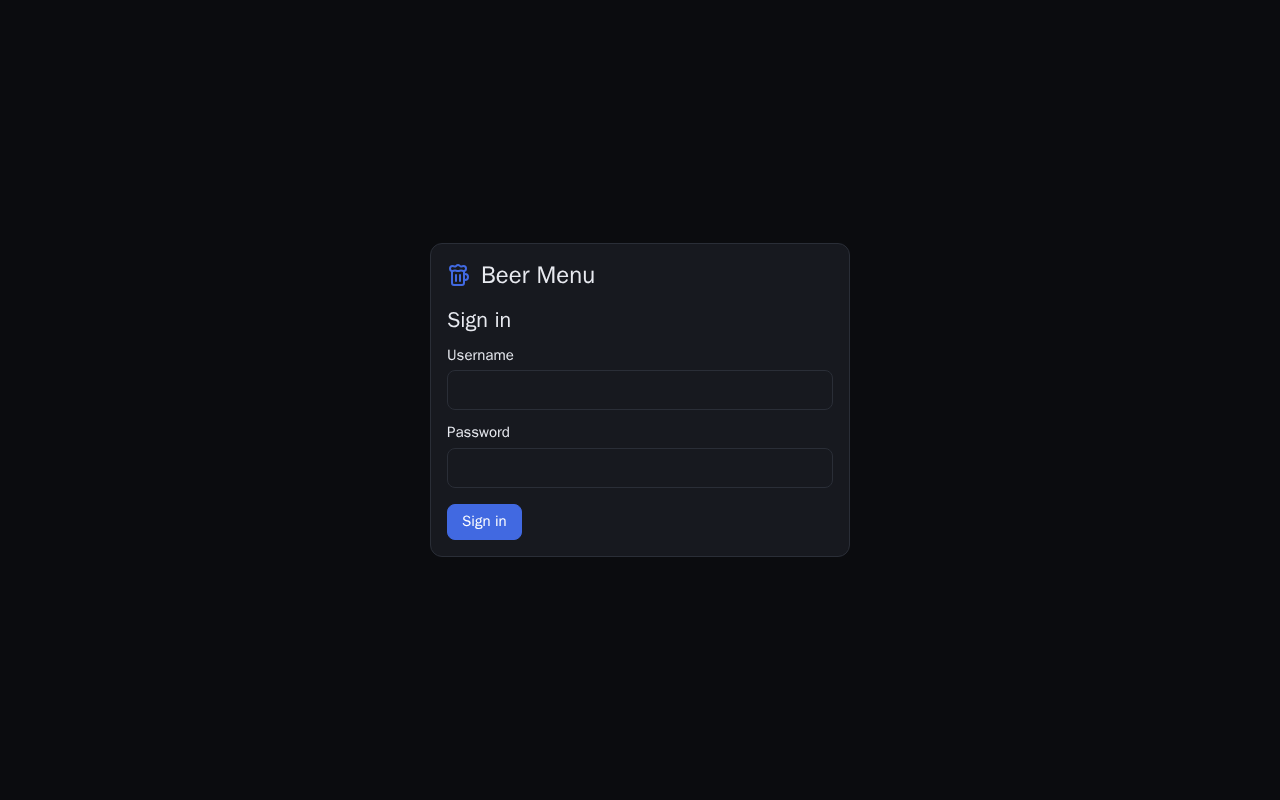
- Open the admin app in your browser.
- Type your Username and Password.
- Select Sign in.
- If you have set up two-factor sign-in, the form asks for a second factor. Do one of these:
- Type the 6-digit code from your authenticator app in Authenticator code, then select Verify.
- Select Use a passkey and approve the prompt on your device.
- If you have lost your authenticator and passkeys, select Use a recovery code, type one of your saved recovery codes in Recovery code, then select Verify. Each recovery code works only once.
If two-factor sign-in is required for every admin and you have not set one up yet, the app shows "Set up two-factor sign-in" after your password. Add an authenticator app or a passkey there, as on the Two-Factor Sign-In page, to finish signing in.
To sign out, select Sign out at the bottom of the side panel. The buttons above it, Light, Dark and System, change how the admin app looks on this browser.
Open the TV display
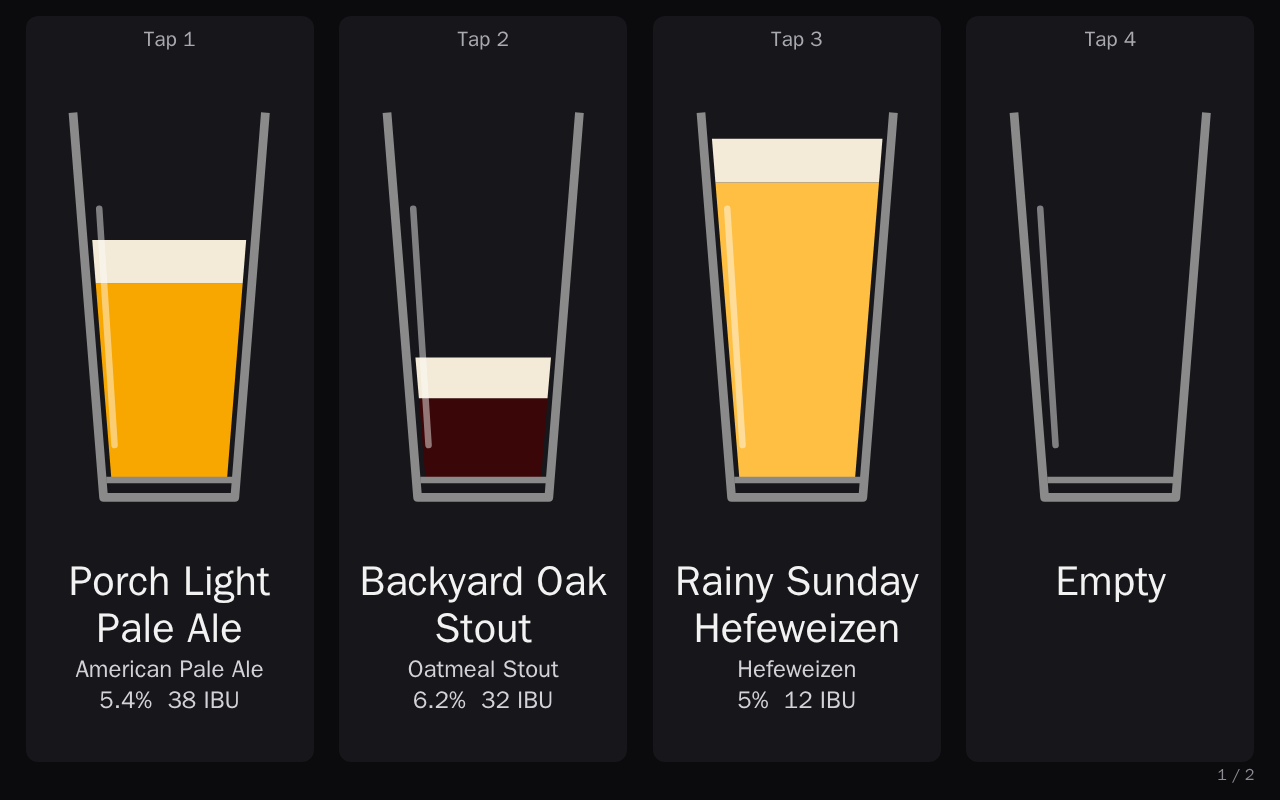
- On the TV, open its web browser. A kiosk browser that starts by itself and fills the screen works best.
- Go to the same address as the admin app, with /display added at the end, for example http://localhost:8080/display on the computer running Beer Menu.
- Leave it open. The display needs no sign-in, updates by itself when you change something in the admin app, and turns pages on its own when there are more taps than fit.