Change Password
The Change Password page changes the password you sign in with. Changing it signs you out on every other device and browser, so use it if you think someone else knows your password.
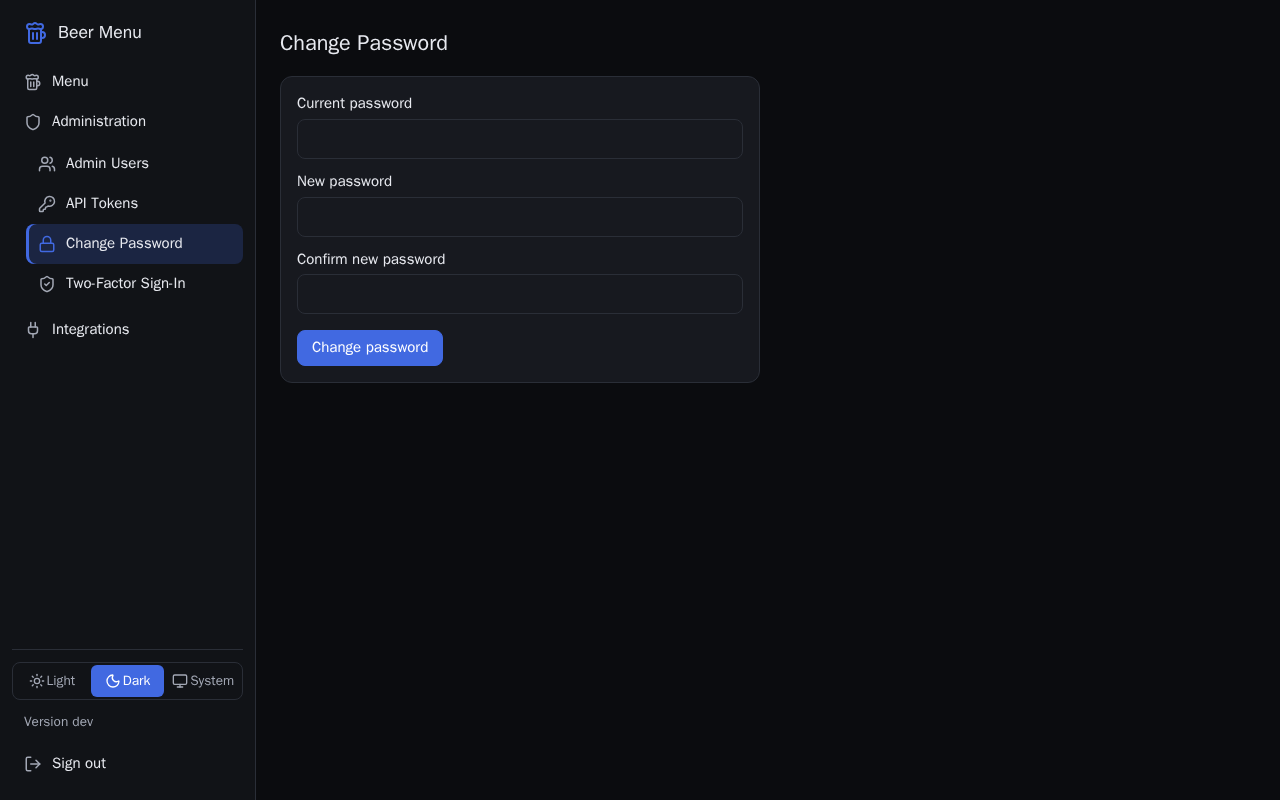
Change your password
- Type your Current password.
- Type a New password of 12 to 256 characters, and type it again in Confirm new password.
- Select Change password.
- If the Confirm it is you dialog opens, type your Password (and your second factor, if you use one) and select Confirm.
- The page says "Password changed. Your other sessions have ended." You stay signed in on this browser.
If the two new passwords are different, the page says "The new passwords do not match." and nothing changes.
If you forget your password, another admin can remove your account and add it again on the Admin Users page.