On Deck
The On Deck page lists what is coming soon, in the same order as the TV's "On deck" page: first the waiting kegs (kegs that are filled but not on a tap), then beers that are still conditioning or fermenting and have no keg yet.
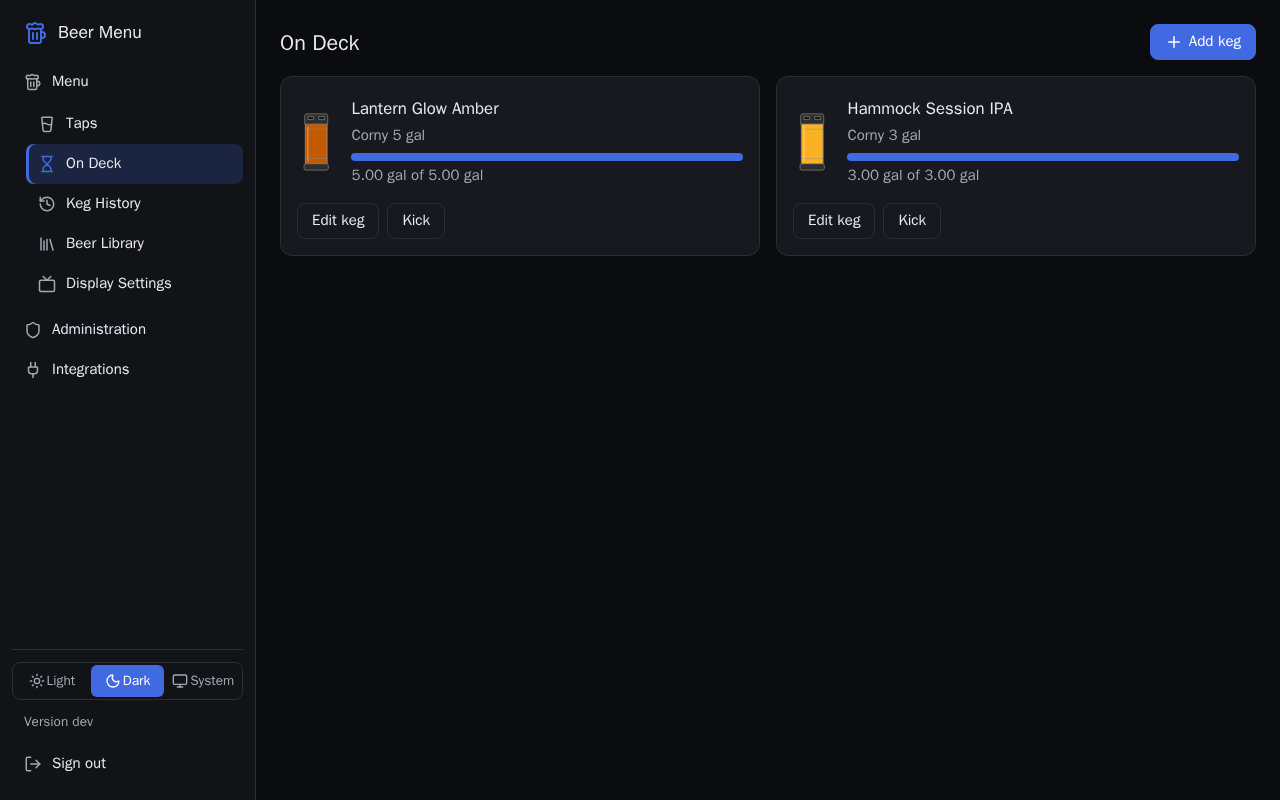
What the page shows
A waiting keg shows the beer, the keg type, a level bar and how much is in it. A beer with no keg shows its name, style, ABV and whether it is conditioning or fermenting; set that on the Beer Library page. When there is nothing to show, the page says "Nothing on deck".
Add a waiting keg
- Select Add keg at the top of the page.
- In the Add keg dialog, start typing the beer's name in Beer, then pick it from the list.
- Choose the keg's Type. Size and Remaining fill in with that type's size; change Remaining if the keg is not full.
- Select Save. The keg appears in the list.
Put a waiting keg on a tap
- Go to the Taps page.
- On a card that shows "Empty tap", choose the keg from the Waiting keg list.
- Select Put on tap.
Correct a waiting keg
- On the keg's card, select Edit keg.
- Change the Beer, Type, Size or Remaining.
- Select Save.
Kick a waiting keg
Use this for a keg that will never go on a tap, for example one that went bad.
Kicking a keg cannot be undone. It moves to Keg History, where you can delete it.
- On the keg's card, select Kick.
- In the Kick keg dialog, select Kick.