Admin Users
The Admin Users page lists everyone who can sign in to the admin app. Every admin can do everything in the app, including adding and removing other admins.
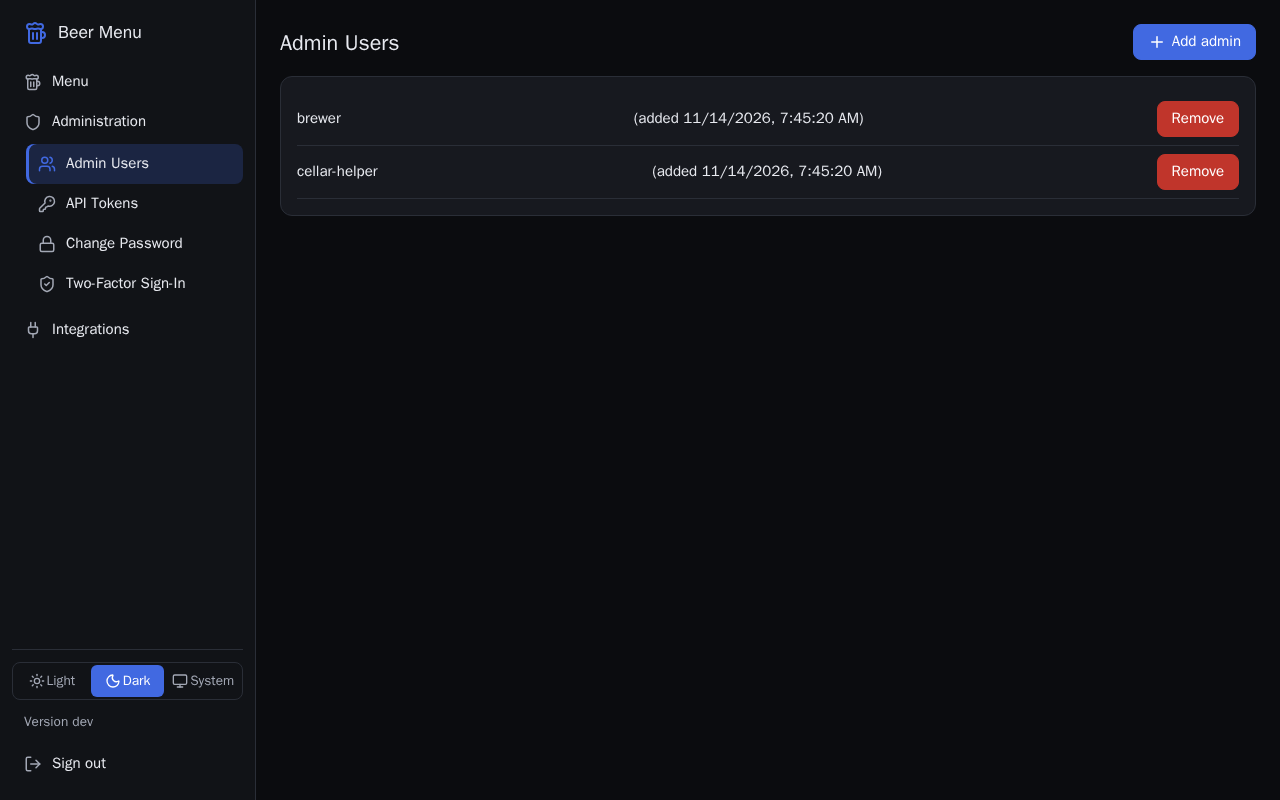
Admins who use two-factor sign-in show a "2FA" badge. Adding or removing an admin, and clearing someone's two-factor sign-in, may first open the Confirm it is you dialog if you have not signed in or confirmed in the last few minutes: type your Password (and your second factor, if you use one) and select Confirm.
Add an admin
- Select Add admin at the top of the page.
- Type their Username and a starting Password of at least 12 characters.
- Select Save. The new admin appears in the list.
- Give them the username and password in person, and ask them to change the password on the Change Password page after they first sign in.
Remove an admin
Removing an admin cannot be undone: they are signed out at once and can no longer sign in. You cannot remove the last admin. If you remove yourself, you are signed out.
- In the admin's row, select Remove.
- In the Remove admin dialog (or Remove yourself), select Remove.
Clear another admin's two-factor sign-in
Use this when another admin has lost their authenticator, passkeys and recovery codes. You cannot clear your own here; use the Two-Factor Sign-In page instead.
Clearing removes all of their second factors and recovery codes and signs them out everywhere. It cannot be undone: they must set up two-factor sign-in again.
- In their row, select Clear 2FA.
- In the Clear two-factor sign-in dialog, select Clear.